 NOVA POS
The till, the repair bench and the print counter. One app.
NOVA POS runs your phone shop, repair desk, top-up counter and print shop from one Windows PC. Your staff can sell from their Android phones on the shop Wi-Fi.
- Works offline
- Your data stays on your PC
- Android app for staff included
Built for shops that do more than one thing
Phone & electronics
Sell handsets by IMEI, track serial numbers and print the warranty on the receipt.
Phone repairs
Book a device in, assign a technician, use parts from stock and see the profit on every job.
Top-up agents
Sell top-ups from each provider's float, with commission worked out for you.
Printing & design
Price copies, banners and design jobs in seconds. Paper and ink come off stock automatically.
Everything the counter needs, nothing it doesn't
Turn on the parts your shop uses during setup. You can switch them on or off later in Settings.
Fast checkout
- Scan barcodes or IMEIs, or search by name
- Split payments across cash, card and mobile money
- Hold a sale and come back to it
- Quotations, invoices and layaway
- Retail and wholesale prices
Repairs
- Tickets with device, IMEI, fault and condition
- Parts taken from stock and costed
- Deposits, balances and repair warranties
- Message the customer on WhatsApp in one tap
Printing & design
- Price calculator for pages, copies and sides
- Large format priced by the square foot
- Paper used is deducted from stock
- Track design jobs from order to pickup
Top-ups
- A float for each provider, updated with every sale
- Commission calculated automatically
- Low balance alerts before you run out
Stock & purchasing
- Every stock change recorded
- Reorder alerts for low stock
- Suppliers and purchase orders
- Import products from Excel or CSV
Reports
- 29 reports: sales, profit, stock, staff and more
- Export to Excel, CSV or PDF
- A live dashboard for today
Receipts & hardware
- 58 mm and 80 mm thermal, A4 and Letter
- Drag-and-drop receipt designer
- Barcode labels
- Opens the cash drawer through the receipt printer
Staff & security
- Roles decide what each person can see and do
- Quick PIN sign-in at the till
- Manager PIN for discounts and price changes
- An audit log of who did what
Phones & backups
- Android app with the same live data
- Automatic daily backups, checked after saving
- Back up to a USB stick or external drive
See it before you buy
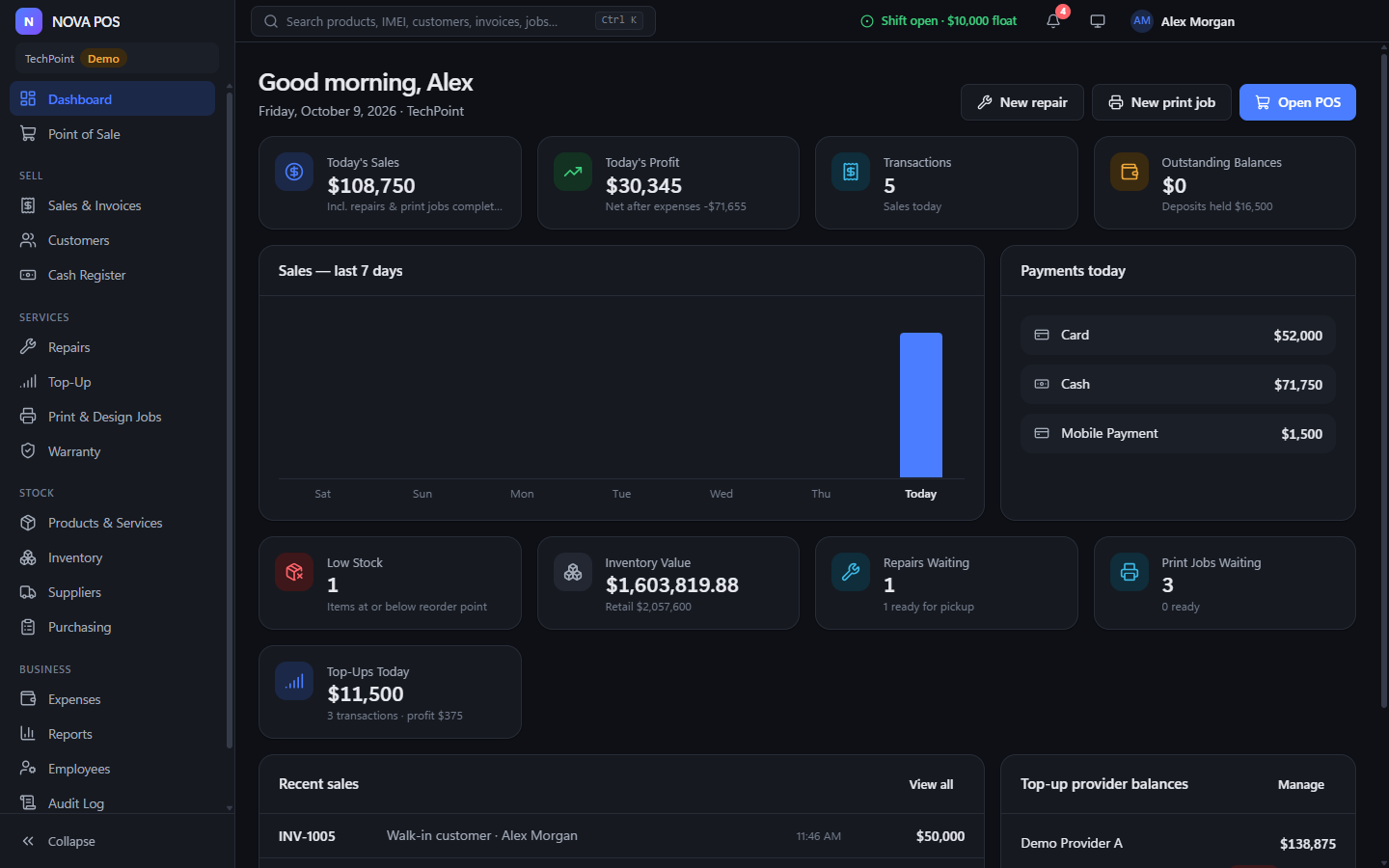
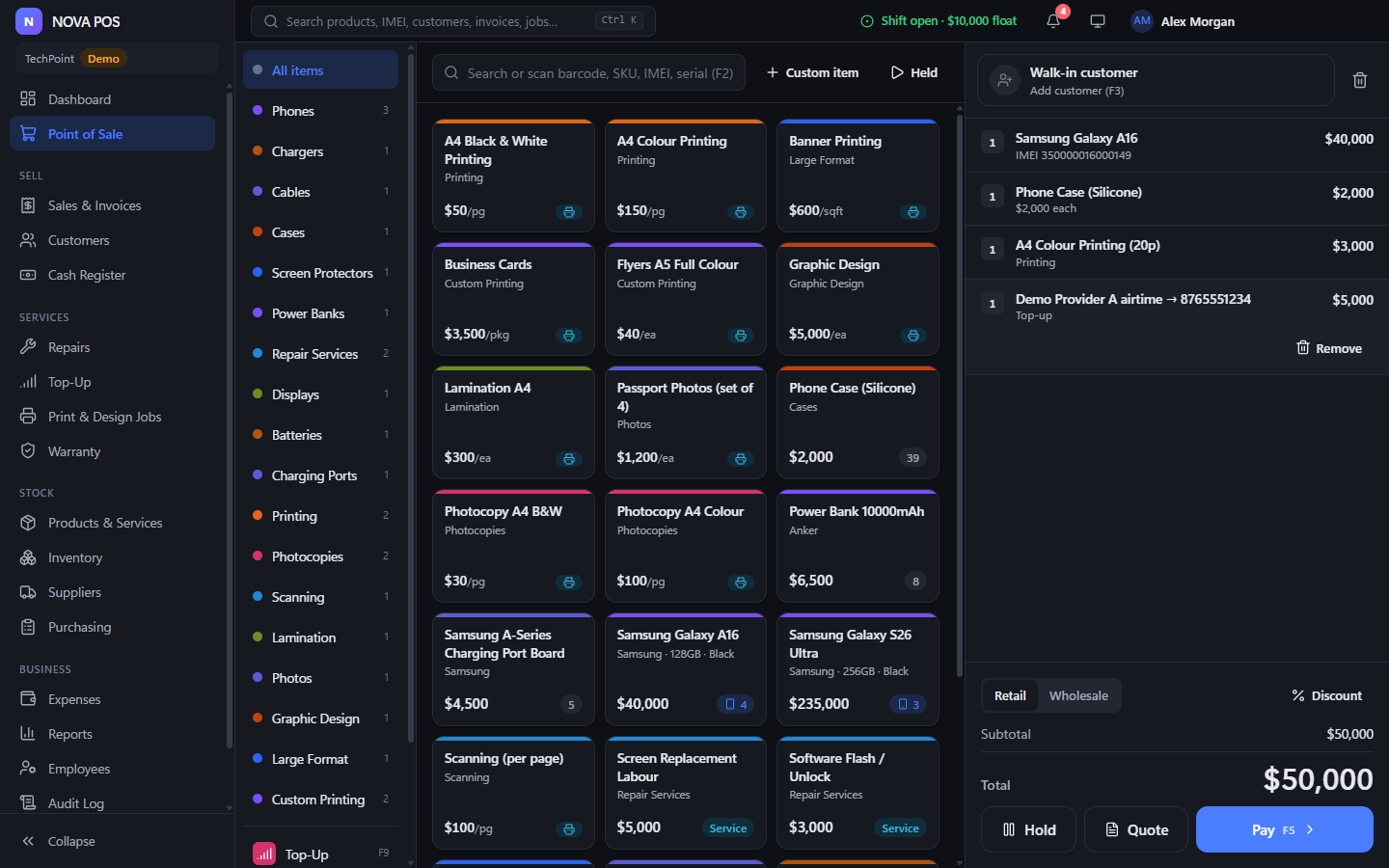
Screens from the demo store that comes with the app. Light and dark themes are both included.
One price. Every feature.
All plans include every module, the Android app for your staff and unlimited products, customers and sales.
- All modules
- Android staff app
- All updates included
- WhatsApp support
- Cancel any time
- All modules
- Android staff app
- All updates included
- WhatsApp support
- Priority help with setup
- All modules
- Android staff app
- Yours to keep, no renewals
- 12 months of updates
- 12 months of support
Get NOVA POS
Install it on the shop PC, then add the Android app to your staff phones. You'll need an activation key from Pricing to start using it.
NOVA POS for Windows
Version 0.4.0 · Windows 10 or 11, 64-bit · about 110 MB
Download for WindowsNOVA POS for Android
Version 0.4.0 · Android 7 or newer · about 4 MB. Open this page on the phone and tap download. Android will ask you to allow installs from your browser.
Download for AndroidFrom download to your first sale
Most shops are selling within an hour. Follow these steps in order.
-
Install and activate it on the shop PC
Download and run NOVA POS Setup.exe. If Windows shows "Windows protected your PC", click More info, then Run anyway. When NOVA POS opens, paste the activation key you got after paying and click Activate. The PC needs internet for this one step.
-
Set up your shop
Create the owner account, then enter your shop name, currency and tax rate. Pick what your shop does (phones, repairs, top-up, printing, retail) and NOVA POS turns on the right modules.
-
Add your products
Add them one by one in Products & Services, or bring in a whole list from Excel in Settings → Import & data. You can match your columns to ours and try the import before saving.
-
Connect your printer and cash drawer
Install the printer in Windows first. Then choose it in Settings → Hardware and design your receipt in Settings → Receipts. A cash drawer plugged into the receipt printer opens by itself when a cash sale is paid.
-
Add your staff
In Employees, add each person with their email, a password and a 4-digit PIN. Their role decides what they can see. For example, a technician sees repairs but not your profit.
-
Open the till and sell
Open a shift in Cash Register with the cash in the drawer. Press F1 for the POS, scan or tap items, then press F5 to take payment. At closing time, count the drawer and close the shift. NOVA POS shows whether you are over or short.
-
Connect staff phones
- On the PC, turn on Settings → Phones & tablets. If Windows asks about the firewall, click Allow.
- Install the Android app on the phone and connect it to the shop Wi-Fi.
- Tap Find my PC automatically, enter the 6-digit code from the PC, and sign in.
-
Check your backups
NOVA POS backs up every day and keeps the last 14. In Settings → Backups, point backups at a USB stick or external drive so a broken PC never costs you your records.
Questions shop owners ask us
Do I need internet to use it?
No. NOVA POS keeps everything on your shop PC and works when the internet is down. You only need internet to buy and download it.
Where is my data stored?
On your own PC, not on our servers. We can't see your sales, customers or stock. Backups go wherever you choose, such as a USB stick or external drive.
Can my staff use it on their phones?
Yes, on Android phones and tablets. They sign in with their own account and see the same live data as the PC. The phone must be on the shop Wi-Fi, and the PC must be on with NOVA POS open.
Can I stop staff seeing my sales and profit?
Yes. Each person gets a role, and the role decides what they can see. Cashiers can sell without seeing your profit or reports. Discounts and price changes need a manager PIN, and the audit log records who did what.
Does it work on iPhone or Mac?
Not yet. The shop PC needs Windows 10 or 11, and the staff app is for Android.
Which printers and scanners work?
Any printer installed in Windows, including 58 mm and 80 mm thermal receipt printers and normal A4 printers. Any USB barcode scanner works. A cash drawer connected to the receipt printer opens automatically for cash sales.
Can I bring in my products from Excel?
Yes. Import products and customers from an Excel (.xlsx) or CSV file in Settings → Import & data. You match your columns to ours and can try the import before anything is saved.
What's the difference between the plans?
All plans have every feature. Monthly and yearly include all updates and support while you're subscribed, and yearly works out two months cheaper. One-time is paid once and is yours to keep, with 12 months of updates and support.
How does the activation key work?
You get your key on this website as soon as you pay. Paste it into NOVA POS on your shop PC and it's tied to that PC, so it can't be used anywhere else. After that NOVA POS works offline. Monthly and yearly plans renew by themselves while you keep paying: the app checks in now and then when the PC is online. To move NOVA POS to a new PC, message us on WhatsApp.
I lost my activation key
Message us on WhatsApp with the email you paid with and we'll find it for you.
Can I switch plans later?
Yes. Send us a message and we'll move you to the plan you want and send you a new key.
How many computers does one licence cover?
One licence covers one shop PC and all the Android phones that connect to it. Running a second shop or till PC needs a second licence.
Can I try it first?
The app includes a demo store full of sample products, repairs and sales, so you can try every screen before adding your own. Contact us and we'll arrange a look before you buy.
Does it work with my currency and tax?
Yes. You choose your currency and tax rate during setup, and receipts and reports use them everywhere.
Talk to a person
Questions before you buy, help installing, or something not working: message us and we'll get back to you.